Splitter, merger and vice versa
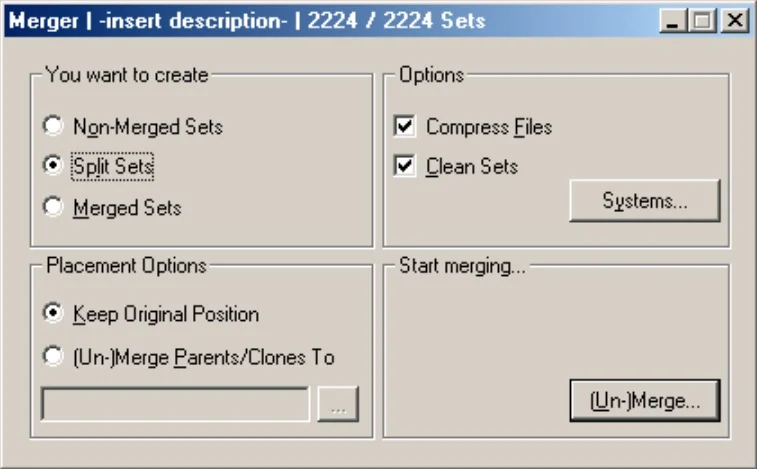
The '(Un-)Merger' will allow you to transform your rom sets from one mode to another (split, merged or not...).
It's very useful with all these clones!
It's very useful with all these clones!
|
For beginners:
Not all emulators support merged. If your set is merged, the games available on the net are in split (for the most part... logical, the files are smaller)! Be Ka-re-Fu-Le! ;-) |
- You want to create :
- Non-merged sets : Each game represents an archive containing all the roms required by the emulator.
- Split sets : Each game represents an archive, the parent games keep the parent roms, the clones keep only their roms different from their parent game.
- Merged sets : Only the parent games represent an archive, the archives of the clone games disappear and their roms are merged with their respective parents.
Non-merged Split Merged Parent rom 1 name abcd crc 1234
rom 2 name azerty crc 789rom 1 name abcd crc 1234
rom 2 name azerty crc 789rom 1 name abcd crc 1234
rom 2 name azerty crc 789
rom 2 name bcde crc 4444
rom 3 name jklm crc 5555Clone 1 rom 1 name abcd crc 1234
rom 2 name azerty crc 789
rom 3 name bcde crc 4444
rom 3 name bcde crc 4444Clone 2 rom 1 name abcd crc 1234
rom 2 name azerty crc 789
rom 3 name jklm crc 5555
rom 3 name jklm crc 5555
- Placement options :
- Keep original position : Rebuild the rom set in the source directory.
- (un-)merge parents/clones to : Rebuild the rom set in a particular directory.
- Options
- Compress files : Checked. Rebuild the sets without compressing the files if unchecked or vice versa.
- Clean sets : Checked, up to you to see. Uncheck this option if you want no file to be deleted during the operation. The Merger does not make backup!
- Systems... : Choose, if necessary, one or more system(s) to rebuild in particular.
Option accessible from the Scanner, the Rebuilder and the Merger.
The folders bearing the name of each bios must all be entered in Rom_paths (and they must have the .zip files!), then do Auto-detect sysdethpaths... or enter the paths manually.
Check the bios that interest you in particular or all of them (All, None or Invert can help you).
Move sets can move .zip files into the right system folders if they are mixed up...
Simply click on the button...
Warning, clrmamepro warns you before launching, of certain conditions with this option:- Sysdefpaths must be configured.
- Files corresponding to no system will not be moved.
- Duplicate files (archives) will not be moved.
- CHDs not placed in a subfolder will not be moved.
- Start merging
- (Un-)merge... : Launch the operation.
- The statistics screen : Once finished, you will have this result screen.
It summarizes all the scanned information, all the files you have and those you don't have.
It's the "health record" of your romset, if I may say so...
You will also find it at the end of a Scan or a Rebuild. - The Warnings window
I address this option now, because it is the first time I encounter it, in the chronological order of writing the tutorial...
This window titled Warnings opens and closes automatically.
It will inform you of possible errors (also possible presence in Merger, Rebuilder, Scanner).
A right click on it allows you to:- Clear the content of the window.
- Automatic scrolling in the window.
- Copy the content of the window
- Delete the file "..."
- Move the file "..." to a particular folder.
- Delete all files concerned by the alerts.
- Move all files concerned by the alerts to a particular folder.