Scan the sets and search for missing files
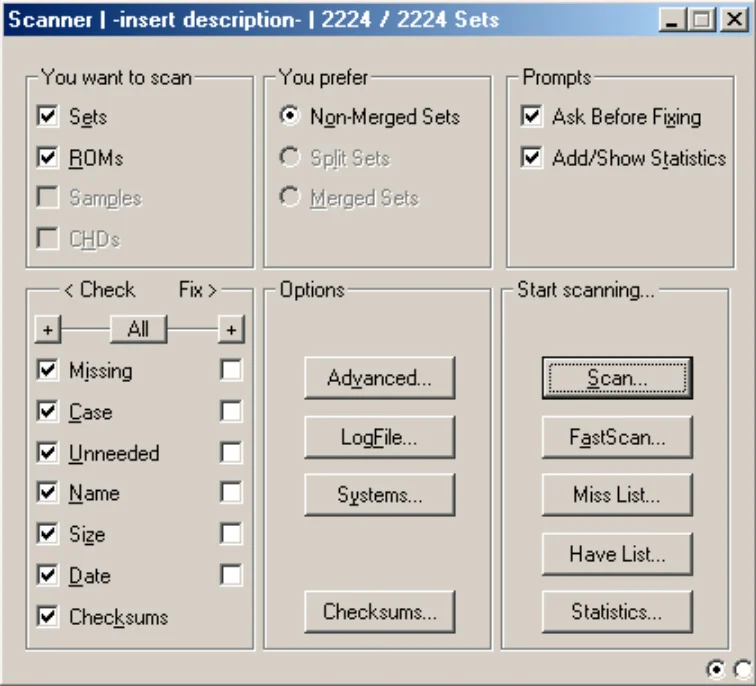
The Scanner!!! The ultimate tool of all emulation enthusiasts... The place of all debates!
|
For beginners:
Check the entire Check column and the entire Fix column on the left. Verify that the Ask before fixing option is checked in Prompt. Clrmamepro will ask before acting! you never know... Choose Split sets or Merged sets then launch the Scan... Normally, you can trust clrmamepro, it will modify what is modifiable, restructure, clean your rom sets and list what you are missing. |
- You want to scan : Scan a particular type of file. A judicious choice can allow an enormous time saving...
- Sets : The .zip archives (the game archives).
- Roms : The roms! (the game files).
- Samples : The samples! (samples you know! :).
Well...
By the way: some games do not integrate digitized sounds in their roms, the sounds loaded from one or more external file(s), the samples!
These non-digitized sounds are, for example, magnetic tape cassettes i.e. analog sound.
Or, unfortunately for most, these sounds are not yet emulated.
For example, a majority of Discrete audio circuits.
Regarding the scan of samples, it is essential that you consult, in the Settings FAQ, the paragraph on samples in the Rom-paths section.... - CHDs : The CHDs (Compressed Hunk Data). To put it simply, let's say that the CHD can contain a cd-rom, a hard drive, essential without which some games cannot work.
- You prefer : Go see in the FAQ of the Merger as well as the Profiler -> Option for more information. But we will still talk about it a little bit.
- Non-merged sets.
- Split sets.
- Merged sets.
To merge or not to merge, that is the question!
Well now, we understand how it works, but what's the best?
Non-merged we forget, that was before, in the Cretaceous... it takes up too much disk space.
Why is this option available then?
Some small emulators do not support merged...
Split, it's ideal... For downloading, it's ideal, small files, all identical roms are deleted...
But for playing?
We will switch to Merged!
When the emulator supports it of course.
All files are in the same archive...
This will give a little less work to your emulator, it will no longer have to work on several archives, the emulation will only be better.
But beware, errors are possible between split from internet and merged on your disk...
Go through the Rebuilder! ;)
- Prompts : New section...
- Ask before fixing : Checked. clrmamepro will ask for authorization before any modification.
- Add/Show statistics : Show or not the statistics screen at the end of a scan or fastscan (see the Merger FAQ).
- < Check Fix > : clrmamepro can control then modify, fix the "parameters" you have decided on the files chosen in You want to scan:
- Missing : Missing files or archives.
- Case : The exactness of the case.
- Unneeded : Unnecessary files or archives.
- Name : The names of files or archives.
- Size : The size of files or archives.
- Date : The date of files or archives.
- Checksums : The signatures of files or archives, (only test them, clrmamepro does not modify any rom).
- Options
- Advanced
- Detect sets in wrong Sysdefault paths : clrmamepro will check if each archive is in the right system folder. You must first configure the Sysdefpaths (see in the System FAQ -> Merger or Rebuilder) and you have, of course, chosen this mode.
- Use wrong Sysdefault for fix missing : Use the Sysdefault paths in case you use Fix missing scans all files.
- Fix missing scans for all files : clrmamepro will scan Addpaths Global addpaths and Backup to fix missing files. Warning, it's practical but if your folders are big, it will lengthen the operation a lot.
- Unneeded check looks for dupe sets : Checked. Check files or archives in duplicate, CHDs will, of course, be ignored.
- Move not renamed sets to backup : No backup performed in case of simple renaming of files.
- Chds use sysdefault assignments : CHDs will be stored in their respective Sysdefpaths if you have sorted your set by system.
- Deeper check for fixable missing files : Check, even if Fix missing is unchecked, if you have missing files.
- Additionally test sha1/md5 for matches : Checked. Check if the sha1 and md5 match, the size and crc32 test must be valid beforehand.
- Use optimized rompath scanning : clrmamepro will reorganize during the scan the placement of archives in Rompaths to optimize the speed and duration of the scan.
- Allow not separated bios roms : Allow the copying of bios roms in each appropriate game, up to you to see according to your needs.
- Allow chds in rompath root : Allow the presence of CHDs at the root of the Rompaths folder (useful for some emulators).
- Show 'baddump' roms & inverted crcs : Display files marked Baddump and inverted crcs in the scan result window.
- Systems... : Scan of one or more particular system(s).
We have already seen this option and its operation in the FAQ of the Rebuilder and the Merger.
It works here on the same principle. - LogFile : Small log and fastscan file manager.
- S : Save.
- ... : Choose where to save.
- X : Delete.
- V : Display.
- Auto save log : The .log file will be automatically saved.
- Hash & CHD... : The checksum of files or archives (the identity of a file).
- Available rom checksums in current datfile :
- Crc32 : Checked! Verify the crc32, essential!
- Decompress rom & check crc32 : Decompress the roms then verify the crc32.
Clrmamepro can decompress the files then launch the crc32, md5 and sha1 test, which theoretically avoids any error.
This function is not useless, but is not mandatory insofar as the crc32 matches, moreover this slows down clrmamepro enormously. Leave as is, in my opinion...
It's useful on certain particular archives (with which you would have problems) or a set with few games. I can't imagine launching this on mame... - Decompress rom & check md5 : Decompress the roms then verify the md5.
- Decompress rom & check sha1 : Decompress the roms then verify the sha1.
- Decompress rom & check crc32 : Decompress the roms then verify the crc32.
- Chd md5/sha1 : Checked! Verify the md5 and sha1 of CHDs.
- Decompress chd & check sha1/md5 : Decompress the CHDs then verify the sha1/md5 (useful for some emulators...).
- Crc32 : Checked! Verify the crc32, essential!
- CHD Misc Settings & Regions :
- Available regions : Disable the scan of certain types of CHD.
We will see how this option behaves as soon as "laserdisc CHDs" are introduced in mame...- Standard
- Cdrom
- Cdrom0
- Cdrom1
- Disk
- Disks
- Ide
- Laserdisc
- Scsi0
- Scsi1
- Available regions : Disable the scan of certain types of CHD.
- ROM Checksum Analysis (Needs CRC32 Check) :
- Run analysis : Unchecked. Analysis of minor errors on files like byte inversions, or missing bytes. This slows down clrmamepro... Up to you to see.
- Fix file (if possible) : Clrmamepro will fix errors without asking for confirmation if you have checked Run analysis.
- Available rom checksums in current datfile :
- Advanced
- Start scanning... :
- Scan... : Launch the scan!
- Fastscan... : Launch the scan! Fastscan is faster, only the roms, archives, files and CHDs marked as missing or "error (example: wrong case)" during a previous scan by clrmamepro will be scanned.
This will speed up the process enormously.
You must, of course, have launched at least once a Scan. - Miss list... : Save a .log file containing the files, the archives you don't have. clrmamepro will offer you to view it right after.
- Have list... : Save a .log file containing the files, the archives you have. clrmamepro will offer you to view it right after.
- Statistics : Display the statistics screen. It summarizes all the scanned information, all the files you have and those you don't have. (see the Merger FAQ).
- The scan result window :
Practical: A drag'n drop of files or archives is possible in the window! (when the scan is finished), a rebuild will be launched. Be careful with the settings!
(See the FAQ of the right click on the scan window for this option)
Different icons allow you to see at a glance the problem:- Set information : Set information summarizes all the information concerning the games you have.
Well, personally, I almost never use Set information...
There are still some interesting options.
Unlike the scan result window, Set information contains all the information on your list of games.
Select a set or a rom in the scan window before opening Set information, the game in question will be selected.
You can quite well select items individually in each window.
A right click on the right window allows you to copy the selected value.
It is possible, in the left tree, to rename sets manually or using [F2].
Be careful not to do anything with this option...
Different colors are used to better see the differences or possible problems on the roms.
The interest is to visualize the problem at first glance...- Écriture noire : Rom of the parent game or bios.
- Écriture bleu : Rom of the clone.
- Écriture rouge : Missing rom.
- Écriture orange : Unfixed problem that clrmamepro can manage.
- Set information : clrmamepro displays all the information available on the game you have selected in the tree.
- Prefered : Options related to No-Intro .dat files (See the Settings FAQ section Regions / languages). The 1G1R mode uses the preferred name instead of the usual names of the sets.
- Name : Name of the archive.
- Description : Name of the game.
- Manufacturer : Manufacturer of the game.
- Year : Year of release of the game.
- SourceFile : Name of the game driver.
- DeviceRef : Name of the devices.
- Clone Of : Name of the parent archive.
- Rom Of : Name of the corresponding bios or the parent set or the set itself.
- Rebuild to : Indicates where the set was rebuilt if you used Dest. prestring in the Rebuilder (see the Rebuilder FAQ - Advanced).
- Sampleset Of : Name of the sample archive.
- BIOS Set : Name of the bios used by the game.
- Set Selection
- Apply : Option related to Select sets. Apply! or OK! as you wish.
- Select sets : Enter a name then click Apply, it will be selected. You can use * to replace a value.
Example: kof* will select all games whose archives start with kof.
The variables used in the Rebuilder also work.
%p=1 will select games with samples.
%h=1 will select games with CHD. - Logical not : Option related to Select sets. Invert the selection, it's the same use as Invert.
- Include clones : Option related to Select sets. Check the option to select at the same time the parent and the corresponding clone, even if your criteria do not correspond to one or the other. If you search for a parent game, its clone games will also be displayed.
- Include parent : Option related to Select sets. Check the option to select at the same time the parent and the corresponding clone, even if your criteria do not correspond to one or the other. If you search for a clone game, its parent game will also be displayed.
- Select all : All games will be selected.
- Invert : Invert the selection.
- Select none : No game will be selected.
- Avail. sets : Only the games you have will be selected.
- From file : Select games through a .txt file. Enter the name of one or more games (the name of the archive), only one game per line.
Load the file and the games will be selected in the list.
You can use for example Have list or Miss list from the Scanner - Load : Related to From file. Load the filter you have created.
- Unload : Related to From file. Disable the settings (the filter) you have chosen.
- Set -/+ : Navigate in the tree and select a particular game.
- CRC Search -/+ : Very practical CRC32 search engine (clrmamepro will search in the loaded profile).
- Show description : Display the description of the games.
- Hide parent : Hide parent roms.
- Hide BIOS : Hide bios.
- Right click on the scan result window:
I will try to give the explanations and translate in order:
- View : View.
- Hide fully-missing sets : Hide entirely missing sets.
- Keep scanner output : clrmamepro will keep in memory your previous scans, it can be practical.
- Expand all items : The tree will be expanded.
- Auto Scroll : A vertical scrolling will be performed in the scan result window.
- Stay on top : The scan result window will always be displayed in the foreground.
- Hide scanner window while scanning : The main Scanner window will be hidden during the scan.
- Show checksums with leading "x0" : The crc32, sha1 and md5 will start with 0x"value".
- For listed issues sets, additionally show : For listed issues, also show (example: wrong name or wrong case...):
- System : System (bios).
- Folder : Folder or archive.
- Parent : The parent game.
- Sampleparent : The sample parent.
- Manufacturer : The manufacturer.
- Size : The size.
- For listed issues roms, additionally show : For missing roms or files, also show:
Small parenthesis:
- CRC32 : Cyclic Redundancy Check, cyclic redundancy check on a 32-bit base,
- MD5 : Message Digest 5, cryptographic hashing based on 128 bits, unfortunately md5 is no longer considered safe in the cryptographic sense after the discovery of flaws and weaknesses...
- SHA-1 : Secure Hash Algorithm, cryptographic hashing designed by the NSA.
These are algorithms that differentiate each file, file hashing methods, a kind of digital signature normally unique to each file.
These algorithms are basically used for information encryption, but in our case, they will differentiate each file since each of them has a different encryption.
A different identity for each file, in fact.- Size : The size.
- CRC32 : The CRC32.
- ~CRC32 : The inverted CRC32. Before the crc32 of baddumps was inverted (in MAME), now, it is directly controlled by a flag, but you can still display the inverted CRC with this option.
- MD5 : The MD5.
- SHA-1 : The SHA-1.
- For listed missing disks, additionally show : For CHDs, also show:
- MD5 : The MD5.
- SHA-1 : The SHA-1.
- Set clone color... : Change the display color of clones in clrmamepro.
- Set nodump rom color... : Change the display color of Nodump roms in clrmamepro.
- Copy to clipboard... : Copy:
- Listed issues of selected sets : The list of problems of the selected set(s).
- All listed sets messages : The list of all messages.
- Setname of selected set : The name of the selected set.
- Parent-setname of selected set : The name of the parent of the selected set.
- Save :
- Fix-datfile : .dat file containing only your missing files. It's very practical!
It's useful for requesting missing roms on the internet.
Whoever wants to help you will just have to load the fixdat-file, add an empty Rompaths and launch a Rebuild from their disk, clrmamepro will reconstitute your sets with only the missing files.
This will save them from searching manually. It's essential when you are missing a lot! This saves you and them from copying the info by hand... It's the same principle if you help someone...- All listed sets issues... : All sets with problems.
- Incomplète sets only... : Incomplete sets only.
- Completely missing sets only : Entirely missing sets only.
- Currently selected set only : Selected set only.
- Autosave fix-datfile after (fast) scan : Automatic save of a fix-dat after a scan or a fastscan in the installation folder of clrmamepro. ./fixdat.
- Autodelete fix-datfile if empty : Practical if you have checked the option above. Automatically delete the fix-dat if it is empty.
- Miss/have list... : clrmamepro will save in succession the list of what you have, then what you don't have.
- Miss/have list incl.url & extension : clrmamepro will save in succession the list with the selected url (see the www open FAQ a little lower) of what you have, then what you don't have.
- Add description to miss/have list... : The description of the sets will be added in your miss/have list files.
- Log-file... : Save a .log file of the result where you want.
- Fix-datfile : .dat file containing only your missing files. It's very practical!
- Export set list : Export the list of sets...
- Export Format : Export format!
- Sets : Classic format of clrmamepro .dat files.
- CSV : "comma-separated values" format.
- Newsbin : Format for Newsbin news reading software.
- Forte agent (global-search input) : Format for Forte agent news reading software.
- No format : Grayed out. You can very well add an output format by editing the "setformat.xml" file in the installation directory of clrmamepro.
- To clipboard : Copy
- All listed set issues : All problems of the listed sets.
- Incomplete sets only : Only incomplete sets.
- Completely missing sets only : Entirely missing sets only.
- Currently selected set only : Selected set only.
- To file : To a file
- All listed set issues... : All problems of the listed sets, where you want.
- Incomplete sets only... : Only incomplete sets, where you want.
- Completely missing sets only... : Entirely missing sets only, where you want.
- Currently selected set only... : Selected set only, where you want.
- Export Format : Export format!
- Drag & drop : Click/move or Drag/drop, as you wish!
As previously said a drag & drop in the scan result window is possible.
A rebuild will be launched, the configuration can be done from the right-click.
This operation is only available if no scan is in progress, the statistics screen must also be closed.
We will of course find some of the Rebuilder options.- Show drag & drop warning : Display warnings about drag & drop.
- Rebuilder -> destination : Choose the folder where the rebuild will be performed.
- Systemdefault paths : Sort by system (bios, see Merger, Rebuilder and Scanner).
- Use folder : ... : The memorized folder is the rompath folder of the loaded profile.
- Set folder... : Choose a particular folder.
- Rebuilder -> Scan subfolder : clrmamepro will scan the subfolders of the source directory.
- Rebuilder -> Recompress : clrmamepro will recompress existing archives.
- Rebuilder -> Remove matched sourcefiles : clrmamepro will delete the used source files!
- Rebuilder -> Show statistics : The statistics screen will be displayed at the end of the Rebuild.
- Rebuilder -> Fastscan after drag & drop : a fastscan will be automatically launched after the Rebuild.
- Delete : Delete... so be careful!
- Currently selected set : The selected set.
- All listed incomplete sets : Incomplete sets.
- All listed <not fixed> sets : Sets marked Not fixed except sets marked Wrong named.
- Move : Move... so be careful!
- Currently selected set : Incomplete sets.
- All listed incomplete sets : The selected set.
- All listed <not fixed> sets : Sets marked Not fixed except sets marked Wrong named.
- www open : This option, so practical, will allow you to open a search engine in your default web browser with the selected value!
But it will also allow you to directly download files from clrmamepro... isn't that great?- Set URL : Check the engine you want to use for the search.
- Caesar : Catalogue of Arcade Emulation Software - the Absolute Reference maintained by the LogiqX team! Very precise, complete on all emulation.
- Maws : Exclusively dedicated to Mame. Very precise, more information related to MAME of course than Caesar.
- <No URL> : Grayed out. You can very well add a url. How to add, like me, Google?
Modify the urls.ini file in the installation folder and add a line: « GOOGLE; http://www.google.com/search?hl=en&q=; &meta= »
Save the file then restart clrmamepro to benefit from the new URL.
;[space] represents the name of the game (without the extension).
The URL must of course always be the same...
- Open... @ ... : Open the configured and selected url in a search engine with the name of the selected game.
- To clipboard... at ... : Copy the url of the configured and selected site with the name of the selected game.
- Download all... @ ... : Download the list of games from a configured and selected url.
- Download... @ ... : Download the selected game from a configured and selected url.
- Rebuild download folder after download : Checked. Launch a rebuild after the download via www open from the clrmamepro download folder (see Settings - Download folder).
- Set URL : Check the engine you want to use for the search.
- Explore :
- Rompath of selected set : Explore the directory containing the selected rom.
- Selected set : Explore the directory or the archive containing the selected roms, via Explorer or your default decompressor, insofar as the archive or the directory exists (if your archive is completely missing, nothing will happen).
- View : View.
- Set information : Set information summarizes all the information concerning the games you have.