Directory configuration...
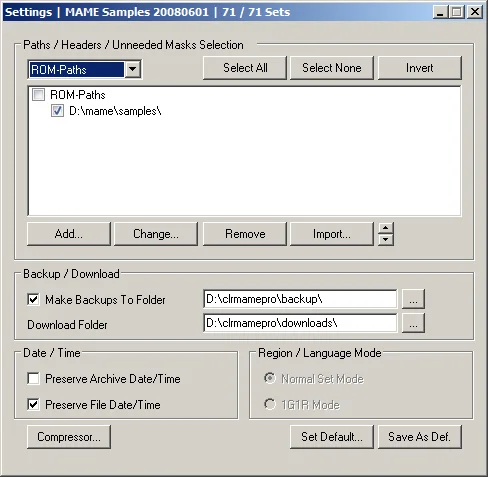
Mandatory passage. The configuration of paths...
You can already see, in the title bar, information on the loaded profile and this in Settings, the Merger, the Rebuilder and the Scanner.
A drag & drop of directories, to record the destination paths, is possible towards the main windows of Settings, for almost all the entries of the menu (Rom-paths, Samples-paths... or drag & drop of a file for Unneeded-Masks).
You can already see, in the title bar, information on the loaded profile and this in Settings, the Merger, the Rebuilder and the Scanner.
A drag & drop of directories, to record the destination paths, is possible towards the main windows of Settings, for almost all the entries of the menu (Rom-paths, Samples-paths... or drag & drop of a file for Unneeded-Masks).
|
For beginners:
Enter the path of your roms folder (as well as Sample depending on the emulator) in Rom-paths using Add (or Change!). Check that Make backups to folder is checked. Check in Compressor that Zip compression level is set to 9. |
- Paths/headers/unneeded masks selection
- The dropdown menu
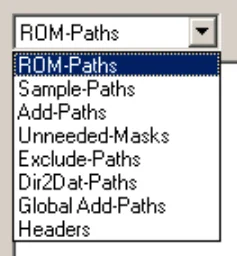
- Rom-paths : Add a roms directory.
There can be several...
In this case, be careful that the name of your Rom-path does not correspond to an archive or a CHD (stored in a directory bearing the name of the archive).
Strangely, this problem happened to me when I started with clrmamepro...
Anyway, clrmamepro will alert you. - Sample-paths : Add a samples directory (depending on the needs of your emulator).
I address this question now, because it is the first time I encounter it, in the chronological order of writing the tutorial...
Regarding the samples:
It is necessary to know that if mame asks for precise crc32 and names for the roms (or the chds) at the loading of a game, it is not the same with the samples.
To emulate a game containing samples, mame only checks the names of the samples and not the signatures (identity of the file, see Scanner in Right click on the scan result window).
Consequence:
When you create a list using the mame executable, only the information concerning the names of the samples will be taken into account.
It's the same with the LogiqX dat which does not add the "hash-value" of the samples in its mame .dat file.
So clrmamepro can only verify:
- the presence of files bearing the appropriate names (whether they are the right files or not).
- the case (assuming the name corresponds of course), which is logical since it has no value to differentiate the files.
Conclusion:
Clearly, clrmamepro does not rebuild on samples, logical (it is on the signatures that the rebuilder relies).
clrmamepro only checks the names.
I would like to point out to novices who have not understood, that this is not a bug... it's logical!
The solution:
Use a .dat file listing the official samples for mame, in addition to your profile for mame (see Profiler in Add datfile for beginners).
It's the only method to check samples reliably.
A file listing official samples is available on Roman's site and from the www mode.
Bizarre, you said bizarre?
... and no, it's not by chance that he maintains this file up to date!
There may be other .dat files listing official samples... - Exclude-paths : The selected subfolders will be ignored, they will not be marked unneeded.
- Unneeded Mask : It's the same function as Exclude-paths but for a file.
Mask = string, value (file extension).
The values entered will be ignored, they will not be marked unneeded.
Example: for one or more .txt file(s) in your roms directory, add "*.txt", the .txt files will not be marked unneeded. - Dir2dat-paths : Specify a precise folder for the Dir2dat option (see Dir2dat in Profiler).
- Add-paths : Additional directories (see Rebuilder).
- Global Add-paths : Additional directories common to all profiles (see Rebuilder).
If you have entered it in one profile, you will find it in the others, no need to redo the operation. - Headers : Allow the verification of file headers (Headers).
To load from an .xml file. It's information placed at the beginning or at the end of each file.
The problem is that .dat files take into account the "pure" hashing of the file, without the Header.
clrmamepro, on the other hand, checks the file in its entirety and that's where it causes problems. If a Header is present, there will be a difference in the result of the file hashing and its real value...
But also at the level of the file size... That's why this additional test was added (at the suggestion of LogiqX).
You simply need to select your corresponding .xml file, if you don't have what you need, you will have to create it...!
They must be placed in the headers directory of clrmamepro for it to be taken into account.
I remind arcade fans that headers concern console roms.
Headers are active in the Scanner, the Merger and the Rebuilder. However, this slows down clrmamepro a lot... - Regions : If your datfile contains information related to regions, clrmamepro will adapt the names of the archives to the corresponding regions (see a little lower).
- Language : If your datfile contains information related to regions, clrmamepro will adapt the names of the archives to the corresponding language (see a little lower).
- Rom-paths : Add a roms directory.
- La fenêtre principale : View the directory fields.Drag & drop possible on almost all selected types of paths.
- Boutons
- Select all : Select all.
- Select none : Deselect all.
- Invert : Invert the selection.
- Add... : Add an entry.
- Change... : Change the directory.
- Remove : Remove the selected directory.
- Import... : Load a mame.ini file to automatically retrieve the configured paths.
Only possible for Rom-paths and Sample-paths. - Flèches : Navigate between folders.
- The dropdown menu
- Backup / download
- Make backups to folder : Checked (even if it slows down clrmamepro a lot!).
Make a backup copy of any manipulated file (modification).
Possibility to choose a precise folder, by default the backup folder is ".\backup" in the installation folder of clrmamepro.
Warning, your backup folder cannot be the same as your source folder, your Rompath folder and your destination folder. - Download folder : Download folder (see right click on the scan result window).
Possibility to choose a precise folder, by default the download folder is ".\download" in the installation folder of clrmamepro.
- Make backups to folder : Checked (even if it slows down clrmamepro a lot!).
- Date / time :
- Preserve archive or file date/time : Up to you to judge, according to your preference.
Preserve the date, the time, of the archives and the files (of their creation or their modification).
- Preserve archive or file date/time : Up to you to judge, according to your preference.
- Region / language mode : Adapt the name of the rom to a chosen language or region.
I remind you that this option only concerns rom sets for consoles...
First of all, your set must be « merged » (no « non-merged » or « split »).
You need a .dat file containing information on languages and regions, of course.
You must have previously activated these options in the dropdown menu.
The order in which you put the languages or regions will be decisive.
Clrmamepro will check the list and will take your first choice going from top to bottom.
You must configure the order of your preferred languages and regions, which will be decisive in the choice or change of names...
Put your preferred language at the top of the list, then your second choice, etc...
All roms do not necessarily have names in the language you have selected, that's why you need additional, alternative choices...
The top of the list being taken into account by default...
So if you choose the French language for example, but no French title exists for your roms, clrmamepro will take your next choice and so on.- Normal set mode : Classic use of the region and language mode
- 1G1R mode : Only concerns No-Intro sets.
These actions will be performed, in addition to managing your preferences on regions and languages:- Only sets containing only parents will be kept.
- For games with clone, only one set will be kept. It will be chosen and kept according to your language and region choices (whether it is parent or clone).
- Compressor : Compressor options settings
It is now possible to choose between three types of compressors: Winzip, Winrar, 7-zip. Simply make your choice in the small dropdown menu located in the Rebuilder. Some emulators and some sets support different types of compression. Warning, mame uses and supports only the zip library (Winzip).
- General :
- Oem/ansi conversion : Checked. Management of file name conversion. To use in case of non-standard file names.
- Mark useless folder structs as unneeded (scanner only) : Checked. Mark as Unneeded subfolder entries (useless) that some archivers create in the structure of archives...
- Test archive (decompress to memory) (scanner only) : Test archives by decompressing them in memory.
- Thread priority : Up to you to judge. This option will allocate more or less CPU capacity to clrmamepro in case you launch other applications during its activity.
- Default : Reload the default configuration.
- Zip :
- Full zip structure scan : Checked for my part, this slightly slows down clrmamepro...
Scan archives more thoroughly to look for possible errors (in the structure of the .zip file). - Additional zip-flush : Unchecked for my part, this slightly slows down clrmamepro...
Additional controls during file compression.
To use if you encounter problems with your files compressed by clrmamepro. - Use zip-cache : Up to you to see! Speed and quality don't always go together.
Zip archiver cache setting. Increase the value to speed up the process. - Zip compress. level : 9. Archive compression level. Maximum of course!
- Default : Reload the default configuration.
- Full zip structure scan : Checked for my part, this slightly slows down clrmamepro...
- Rar :
- Executable : Path of your WinRar executable.
- Compress : Command line corresponding to compression options.
Refer for now to the WinRar documentation to optimize compression or its action. - Delete : Command line corresponding to deletion options.
Refer for now to the WinRar documentation to optimize deletion or its action. - Default : Reload the default configuration.
- 7Z :
- Executable : Path of your 7-Zip executable.
- Compress : Command line corresponding to compression options.
Refer for now to the 7-Zip documentation to optimize compression or its action. - Delete : Command line corresponding to deletion options.
Refer for now to the 7-Zip documentation to optimize deletion or its action. - Default : Reload the default configuration.
- General :
- Boutons : I will be very brief on these buttons:
- Save as def. : Save your configuration as the « default.cmp » config.
- Set default... : Load the default configuration (default.cmp).